

How to Get Text Back Out of Scanned Pages You Cannot Search
A scanned certificate or letter looks like a document, but a search cannot find a word inside it and nobody can quote from it. This article explains why scanned pages fail, how to get the text back out, and what to check before the page is used as evidence in a response.
By EA Team
Contents
A facilities manager scans an accreditation certificate, saves it as a PDF, and files it in the shared folder. The file is clear, and it looks right on screen. Three months later, a bid coordinator searches the folder for the accreditation number and finds nothing. She opens the PDF and reads it, then types the number into her answer by hand. The number is correct. The search still cannot find it, and the next person who needs the same certificate will face the same problem.
This article explains why a scanned page cannot be searched, how text recognition works, how to check its output against the page, and how to keep the signed image and the working text together. Once the words are recoverable, the page becomes usable evidence.
Why a scan cannot be searched
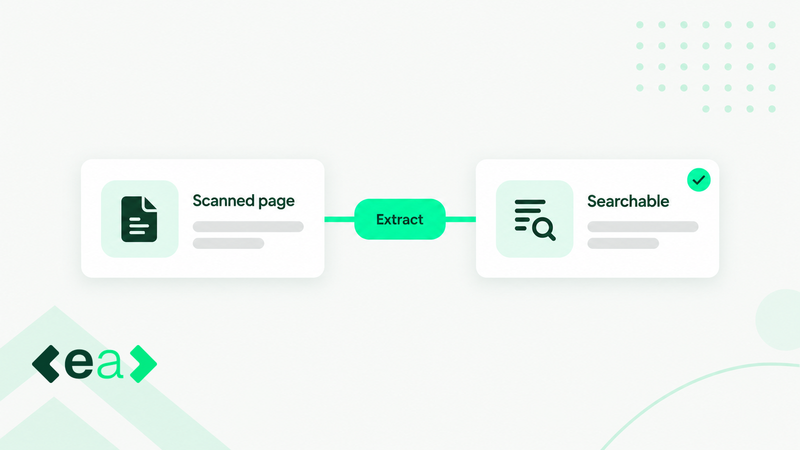
The scan works as a picture. A search engine, and most reading tools, look for characters. A page made of pixels has none to find, so the words on it cannot be searched, selected or copied.
Many office scanners and phones produce an image wrapped in a PDF. The file opens and prints well, which is why the problem goes unnoticed. The words are there in a visual sense, but there is no text layer behind them. When the scan is later uploaded to a document library, the library may be unable to read the page at all, and the file may not appear in search results.
This matters for evidence. A reviewer who wants to quote a line from a signed letter needs the words themselves. A reviewer who wants to check a figure needs to find the figure, and a number that cannot be searched is easy to miss.
Run text recognition and check the output
Text recognition, often called OCR, converts the characters in a scanned image into text that a search can read. Most office software and many scanning tools offer it, as do several standalone services. The steps are simple. Open the scan in your chosen tool, run recognition, and save the result as a new file, keeping the original image unchanged.
Before you run recognition, open the scan at full size and check that every line is visible, the edges are clean, and the signature and date are readable. A page may be skewed, the contrast may be too low, or a stamp may cover part of a line. Rescan any page that fails this check, because recognition cannot recover information the scan never captured.
Then check the output. Recognition makes mistakes, especially with small print, stamps, handwriting, and numbers. Compare the recognised text with the page for every number and name, because a single wrong digit in a certificate reference will cause problems later. Pay particular attention to tables and numbers, since recognition often mixes columns in a certificate schedule or drops a decimal point. Read every figure against the page, and do not assume a figure is correct because the surrounding text reads well.
Mark the file as checked in your register once the comparison is done.
Keep tables and layout intact
Some recognition tools return plain text and lose the structure of a table or a schedule. For a certificate with several columns, such as a list of covered sites or a schedule of limits, look for an option that keeps the table layout. If the table comes back as a single stream of numbers, check each row against the page before you rely on it. A structured table is far easier to check than a paragraph of run-together figures.
Keep the image and the text together
Keep two files for each important scan: the signed image, which is the legal record, and the text version, which is the working copy. Name them so the link is obvious, and note in the register which one to quote from and which one to produce if a buyer asks for the signed copy.
Place the text version where people will look for it. A searchable copy in the same folder as the signed image, with a name that makes the link obvious, works well. When you upload to EA, the searchable version is the one that will help most, because a search can only match text it can read. Check the document after upload by searching for a word you know is on the page. If nothing comes back, the file needs recognition before it is useful.
Review the stored text when the source changes. A renewed certificate is a new document, and it should go through the same scan, recognition and check, so the old text is not replaced in place. Keeping the earlier version lets a reviewer compare the two if a client asks what changed.
Use the text in a response with care
Once the text is available, quote carefully. Copy the exact wording and the date, and cite the source document. A reviewer should be able to open the cited document and find the same line on the signed page. If the text has been corrected during recognition, make sure the correction matches the original and does not change the meaning.
Building the evidence trail for each answer describes how a reviewer can check a claim back to its source, which is the same discipline that makes a recognised document trustworthy.
Decide which scans need recognition first
Not every scan needs the same treatment. A certificate that a buyer will quote from, a letter that carries a figure, and a policy that contains a commitment should be recognised and checked before anyone uses them. A decorative letterhead or a page of general correspondence can wait. Ranking the scans by how often they will be quoted saves time, and it puts the most important text into a searchable form first.
When recognition makes an error, correct it in the text file and leave the scan unchanged. The scan is the signed record, and it should stay as it was received. Note the correction in the register with the date and your initials, so a reviewer knows the text has been checked against the original. If a figure is critical to a response, such as a certificate number or a policy reference, verify it twice, once against the scan and once against the source system that issued it.
Keep a note of the ones you have processed. If a certificate is renewed next year, the team can find the previous text quickly, compare the two, and spot any change in the wording before the new version is used. For longer work, such as a set of supplier letters, turning a large response into a usable set of answers describes which steps benefit from automation and which still need a person to check the result.
Make the words findable
A scanned page is a useful record, but only once it can be searched and quoted. Run recognition, check the words against the page, and keep the signed image beside the text. That small amount of work means the next person who needs a certificate number finds it in seconds, and the number they use is the one on the page.
If your team relies on scanned certificates and letters, book a demo and we can show how EA's Storage handles searchable documents alongside the originals you keep.
Filed under Compliance Knowledge & Evidence, 29 October 2026All posts
Keep reading