An AI assistant is only as careful as the permissions behind it. Scope access by role and workspace before people start asking questions, because the assistant will answer from whatever it is allowed to reach.
The question a search box never asks
Imagine a junior contributor at a legal firm, assigned to draft one section of a client's due diligence response. She types a question into the assistant and receives a fluent answer that draws on a restructuring file she has no business reading. The assistant did exactly what it was built to do. It searched what it could reach, and nobody had decided what it should reach.
That is the core issue. A document library usually holds years of work, across teams, clients and sensitivity levels. A shared search box makes all of that look equally available. Access decisions that were once made by folder structure, and by the practical difficulty of finding things, now need to be made explicitly, because an assistant can find things quickly.
This article covers how to write down role-based limits, how EA scopes workspaces and evidence by answer status, and how to test the setup before rollout. Getting the boundary right early means the assistant helps the whole team without exposing material to people who should not see it.
Start with roles, not with the tool
Before you configure anything, write down what each role should be able to do. A useful split for bid and compliance teams is:
- Administrators set up workspaces, invite people and decide who is linked to what. - Editors maintain the evidence and can add or remove material, but usually not for answers that are already approved. - Contributors draft answers they have been assigned, and they should only see the evidence those answers need. - Viewers read approved outputs and nothing in progress.
The point of the table is to make each role's limit visible before anyone opens the assistant. If the people who approve access cannot say in one sentence what a contributor can see, the setup is not finished.
How EA scopes what each person can reach
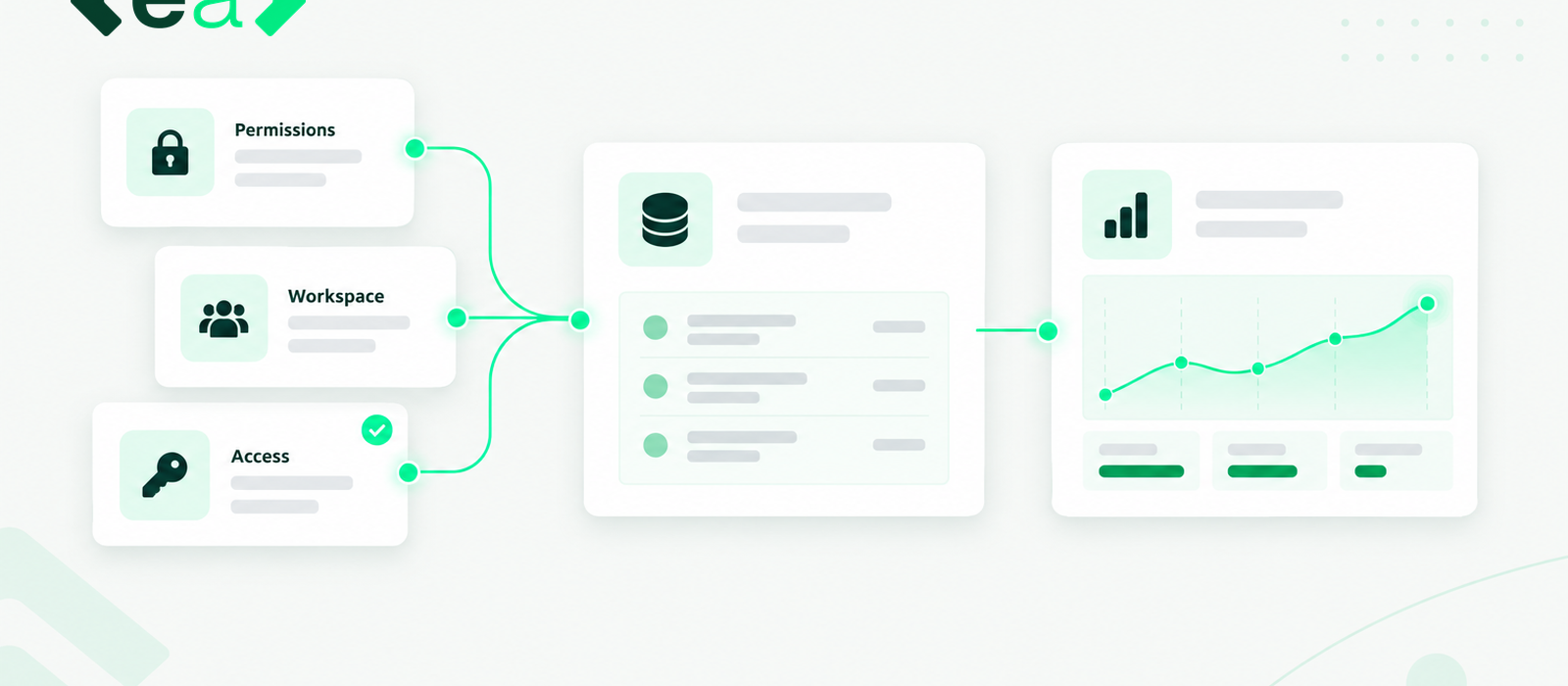
EA's role permissions work at several levels. Workspace visibility is explicit: administrators, editors, contributors and viewers see only the workspaces they have been linked to, and being given an administrator role does not automatically grant access to every workspace. Surveys follow the same logic. Contributors see the surveys assigned to them, while editors and administrators see all of them.
Evidence is scoped by answer status, which matters because status changes what a person should see. A contributor can see evidence when an answer is assigned to them, or once the answer has reached reviewed or approved status. A viewer sees evidence only on approved answers. A contributor can only edit an answer when it is assigned to them and has not yet been approved. Those rules limit exposure in the places where a mistake would be most costly, which is the draft that has not been checked.
Connectors need the same care. When your team links EA to SharePoint, OneDrive or Google Drive, the files that come through should follow the permissions you set in those systems. How to manage connectors, permissions and file access with EA's SharePoint example walks through that step in detail.
Route questions to the people who should answer them
Access scoping also shapes who is asked. If a contributor cannot see a restricted section, a question about that section should go to the specialist who can. This is the same logic as routing tender questions to subject experts, and it keeps the assistant's answers inside the boundary the team has agreed. Routing tender questions to a specialist describes how that handoff can work without slowing the bid down.
When someone reaches a wall, the reaction should be to ask, not to find a workaround. A clear route to the right reviewer turns an access request into a routine handoff, and it keeps the record of who saw what tidy.
What to check before you roll out
Run a short test before the whole team uses the tool. Sign in as a contributor and a viewer, ask the same questions, and check what comes back. If a viewer receives a draft answer, or a contributor sees evidence from an unrelated client, fix the scope before going further.
Pick two or three realistic questions for each role and note which sources the assistant draws on, and whether any source falls outside that role's reach. Keep those questions in the workspace, so the next administrator can repeat the exercise without reinventing it. Repeat the test after any change to the team or the workspace structure. A tested boundary gives the administrator confidence to say yes to new users quickly.
Keep a one-page record of the roles, the workspaces each role can reach, and the owner of that decision. When a client asks how access to their material is controlled, you can show the record rather than describe the setup from memory.
Plan for the people who change roles
Access problems rarely come from the first day of a rollout. They come later, when someone moves from one client team to another, takes on a new specialism, or leaves the firm. Permissions that were right in January can be wrong by June, and an assistant will continue to answer from whatever it can still reach.
Put a simple process around movement. When someone joins a bid team, the administrator confirms which workspaces they need. When someone moves on, the administrator removes the links they no longer need and checks their open assignments. Tie the review to the moments when work naturally changes hands, such as the close of a bid or the start of a renewal. That is a far lighter burden than a quarterly audit of everyone's access, and it catches most of the drift.
Decide what a contributor should not see
It helps to be specific about the material you want to keep out of reach. For most professional-services teams, the list includes pricing and margin information, the detail of a client's own confidential submission, internal risk assessments that name individuals, and drafts that a senior partner has not yet reviewed.
Where the content is sensitive but still needed in the answer, keep the decision with the reviewer. A contributor can draft the surrounding text, and the specialist who holds the restricted detail adds it at review. This keeps the assistant useful for the bulk of the work while the most sensitive passages stay with the people accountable for them.
Make the limit visible to the team
People work more carefully inside a boundary they understand. Tell your team, in plain language, what the assistant can and cannot reach for their role. A short note in the onboarding pack is enough: which workspaces they will see, which answers they can change, and who to contact when a question falls outside their access.
Conclusion
Limiting an assistant's reach keeps the team's work sharper. Each colleague gets the evidence their part of the work needs, at the point where they need it, and the sensitive material stays with the people accountable for it. Decide those boundaries once, test them with real questions, and review them as people and projects change.
If you are setting up EA for a team and want to agree roles and workspace access before the first bid, book a demo and we can walk through the permissions with your administrator.