Connecting EA to your organisation’s tools gives your AI agents access to the information they need to get work done. But with that access comes the need to control who can use each connector and which information they can access.
EA gives you control over connector permissions, organisation-wide access, groups and individual file access, so you can decide exactly who can access what. Here’s how to manage these settings using the SharePoint connector as an example.
1. Go to Connectors
Head to Connectors on the EA platform.
2. Select the SharePoint connector
Search for and select the SharePoint connector. Here, you can see what the connector can do and how EA can use and access the connected SharePoint site.
3. Share the connector with your organisation
The connector is initially set up for personal access. If you want everyone in your organisation to be able to use it, select Share with organisation.
4. Log in
You will then be directed to a separate screen where you can log in.
5. Review EA’s access
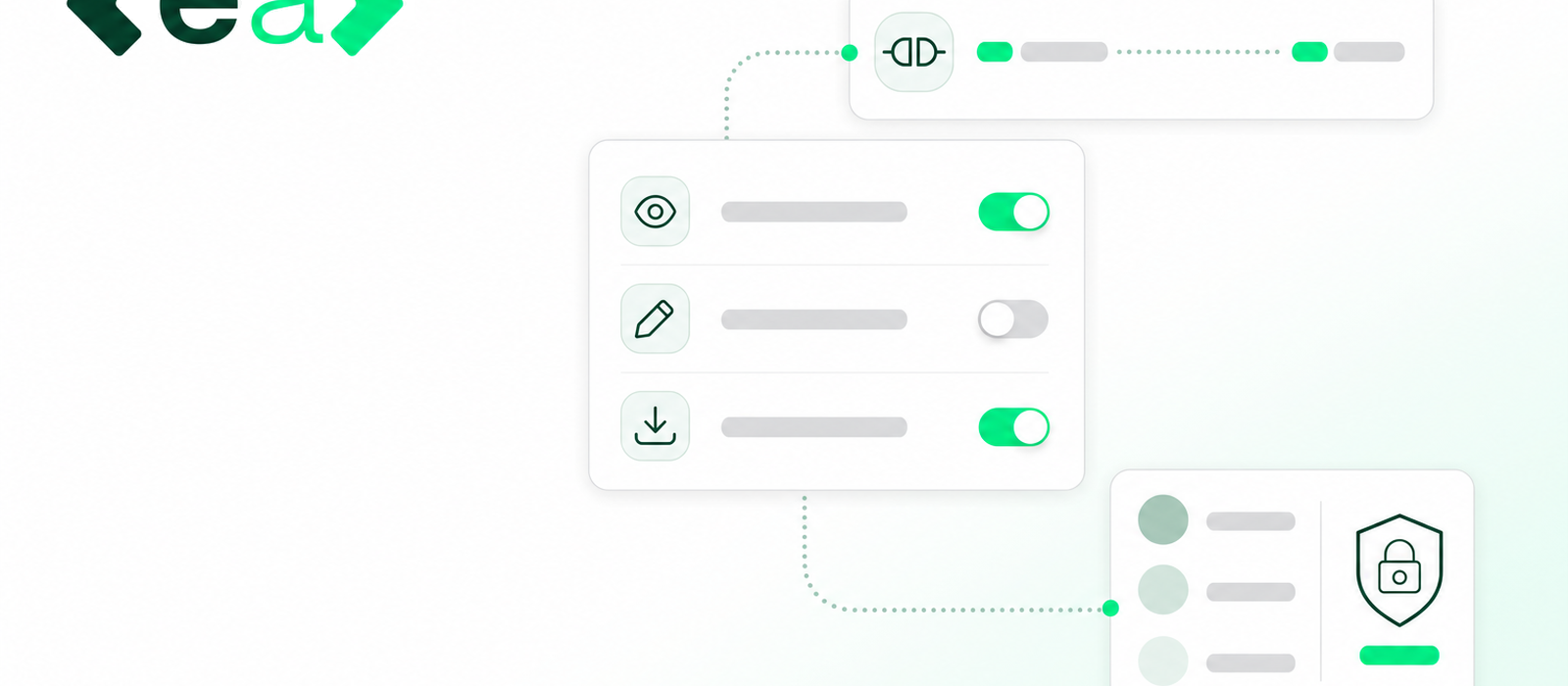
Once logged in, you can see the exact permissions EA has for the connector. You can turn individual permissions off depending on your organisation’s preferences and requirements.
6. Choose who can use the connector
Select the Everyone button to change who can use the connector.
You can choose from:
- Everyone in the organisation
- Everyone except specific people and groups
- Only specific people and groups
This allows you to control access at an organisation-wide level, while still giving you the flexibility to restrict access for particular users or groups.
7. Manage access to individual files
Once a connector such as SharePoint has been connected, you can also control access to individual files. To do this, right-click on any file and select Access.
You will see the same access options as before, but these settings will apply specifically to the file you have selected.
By choosing Everyone except specific people and groups or Only specific people and groups, you can select specific groups to restrict or allow access to that file.
Groups can be created through the Members panel, where specific permissions can be applied to specific groups.
8. Check who has access to a file
To see which members currently have access to a specific file, right-click the file and select Details.
This allows you to review who can access the information and make sure permissions are set as intended.
Keep control over your organisation’s information
With EA’s access management, permissions and groups, you can control who has access to your organisation’s information and how that information can be used. This ensures that the right users have the right access to the right information within their organisation.
Want to see EA’s access management in action? Book a demo or start using EA for free today.