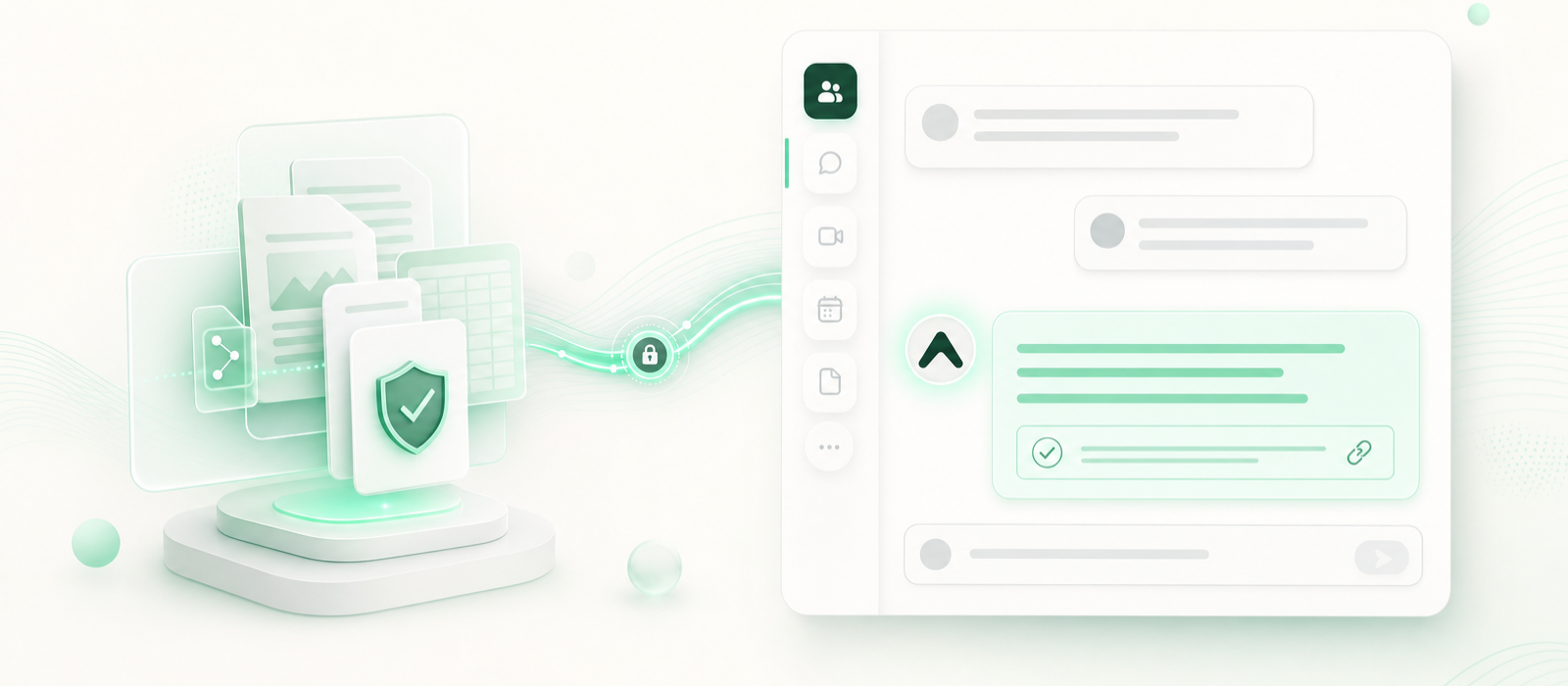
EA Global AI is now available in Microsoft Teams, bringing your Digital Executive Assistant into the conversations where your team already works. Once your account has been connected, your team can use EA in channels, group chats and 1:1 chats to ask questions and find information from your organisation’s Knowledge Base. EA provides source-backed answers, so your team can see where the information comes from and review it before taking action.
What Your Team Can Do With EA in Teams
- Ask EA questions in a Teams channel, group chat or 1:1 chat
- Find information from your organisation’s Knowledge Base
- Receive answers with links to the sources used
- Ask EA what it can do by typing Help
- Get support within the conversations where your team already works
EA brings your organisation’s trusted knowledge into Microsoft Teams, making it easier for your team to find reliable information exactly when they need it.
How to Set Up EA in Microsoft Teams
There are two parts to the setup:
- An EA administrator connects your organisation’s Microsoft 365 tenant.
- Each Teams user adds the EA Global AI app to their Teams and activates their account.
Part 1: Administrator setup
This step must be completed by your organisation’s EA administrator.
The EA administrator should sign in to EA and go to:
Agent Settings → Triggers → Microsoft Teams
They should then follow the instructions to connect your organisation’s Microsoft 365 tenant.
Once this is complete, team members can add EA Global AI to Microsoft Teams.
Part 2: Add EA to Microsoft Teams
The following steps are for individual Teams users within your EA organisation.
Step 1: Open Microsoft Teams
Open Microsoft Teams on your desktop or in the Teams app.
Step 2: Open the Apps directory
Select Apps from the left-hand navigation panel.
Step 3: Search for EA Global AI
Type EA Global AI into the search bar.
Step 4: Add the app
Select EA Global AI from the search results.
When the app details appear, select Add.
Step 5: Add EA to a channel
Select the channel that you would like to speak to EA in.
EA Global AI will then be added to the channel and it will open.
Step 6: Send EA a test message
Send a short test message to EA.
Step 7: Follow the verification link
EA will reply with a welcome message and a verification link.
Select the link and follow the instructions to activate your EA account.
Step 8: Start using EA in Teams
Once your account is activated, you can use EA Global AI in a 1:1 chat, a Teams channel or a group conversation.
Ask EA questions based on your organisation’s Knowledge Base and use it to find trusted information within Teams.
Not an EA user but want to see what this looks like in action?
Book a demo or try it free today.